

TL;DR
June brings interactive vitals trend charts that plot every vital sign over time — with abnormal values flagged and reference ranges drawn in — plus a chronology timeline graph showing care continuity at a glance. Downloads now let you toggle citations on or off, and a new Providers view breaks out every treating provider from the record. Bates stamping, reference documents, and a handful of workflow improvements round out the month.
What’s new?
Vitals trend charts
The Vitals page now has a Trends tab. Every vital sign ChartInsight extracts — blood pressure, heart rate, temperature, respiratory rate, oxygen saturation, and pain — is plotted as a small-multiple line chart across every visit in the record.
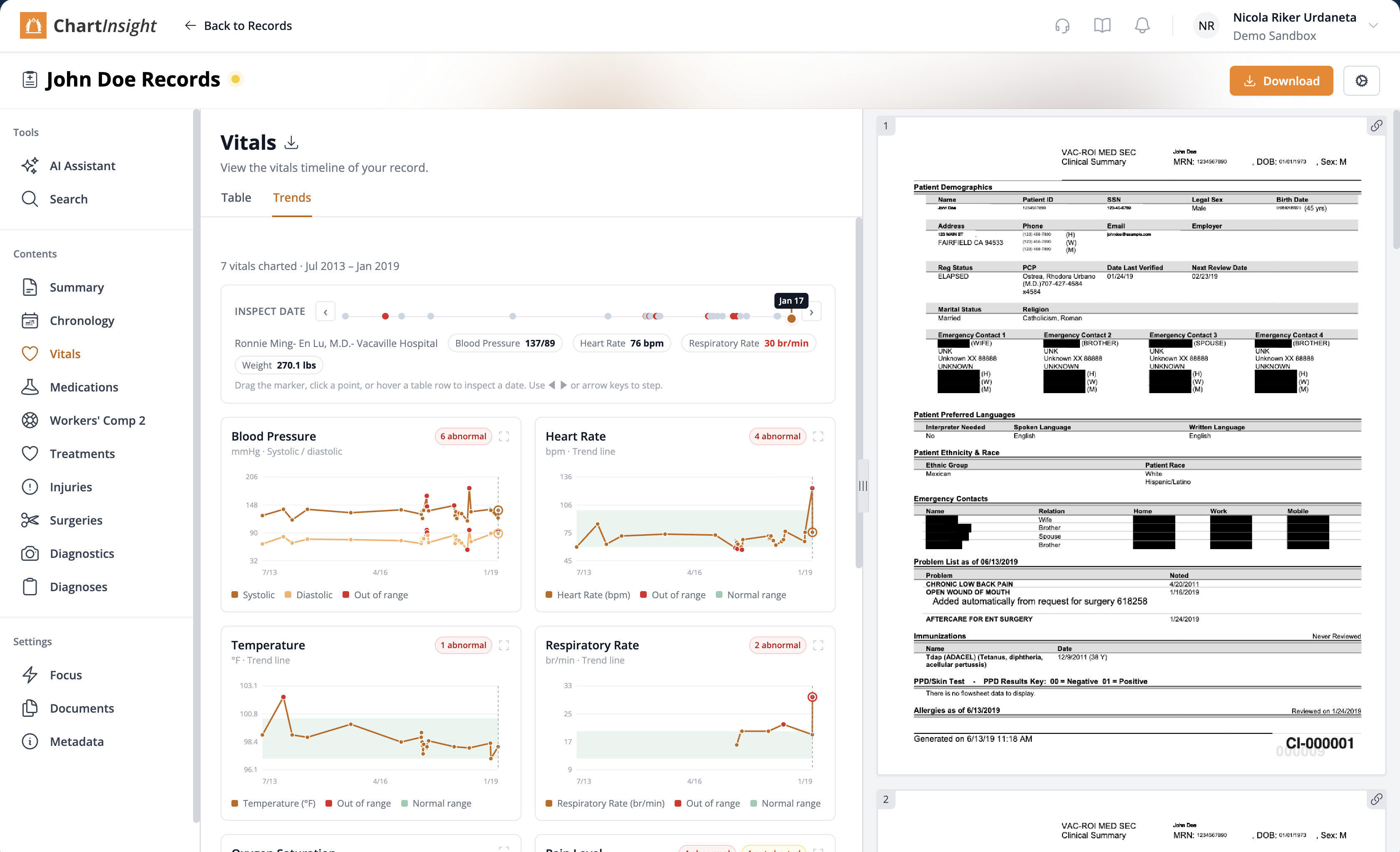
Abnormal-value flagging. Data points outside clinical reference ranges are circled in red and counted in a badge (e.g. “6 abnormal”). The reference band is drawn as a shaded region so you can see exactly where the value falls relative to the normal range.
Inspect-date strip. Click any point — or use the arrow keys — and a detail strip shows every vital recorded on that date, along with the provider who documented it. Drag the marker across the timeline to compare visits side by side.
Blood pressure gets its own dual-line chart (systolic and diastolic), with separate flagging for each. The remaining vitals chart as single-line trend plots with a dashed trend line.
Chronology timeline graph
The chronology now opens with an interactive care continuity graph above the table. Each appointment type is color-coded, and the stacked area chart shows how care was distributed over the life of the record.
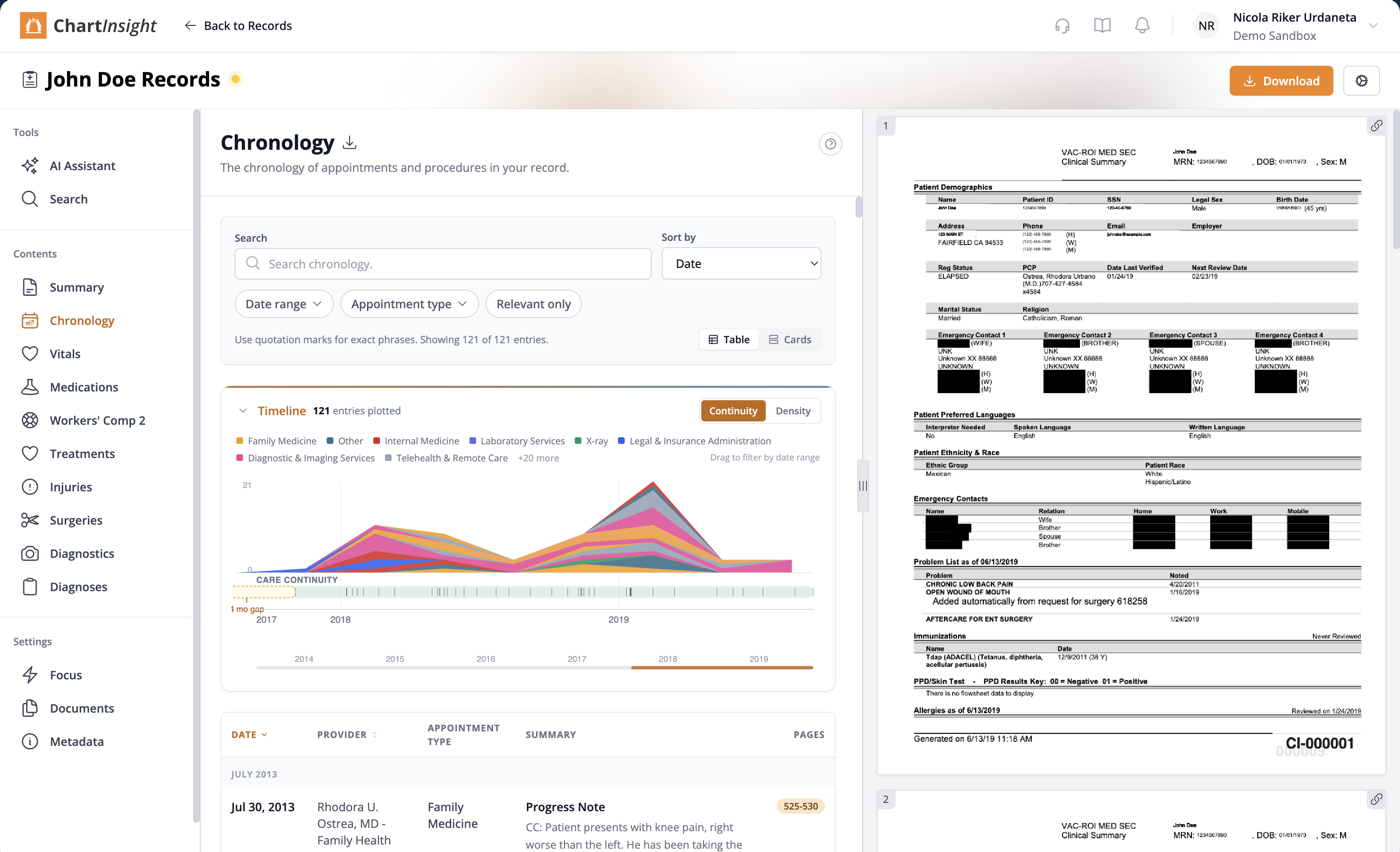
Drag to filter. Select a date range on the timeline and the table below filters to match — helpful when a 300-page record spans three years and you need only the first six months post-injury.
Continuity vs. Density. Toggle between a continuity view (how care overlapped over time) and a density view (where visits clustered) to spot treatment gaps or bursts of activity.
Changelog
Court-ready exports
- Citation toggle on downloads. Chat, insight, and chronology downloads now include an “Include citations” checkbox. Turn it off when the recipient doesn’t need page references — the output reads more like a clean narrative.
- Chronology DOCX options. The chronology download dialog adds page-range controls: pick a start and end page so you can export just the portion of the chronology that matters for a deposition exhibit.
- Org DOCX font on chat and insight downloads. If your team has set a custom font in Organization Settings, chat and insight DOCX exports now use it — no more switching fonts after the fact.
- Underline rendering. Underlined text in the original record now renders correctly in the web viewer, PDF exports, and DOCX exports.
- Custom section headers in exports. Display names you set on custom sections in the template editor now carry through to DOCX and PDF exports, replacing the internal section key.
Provider analysis
- Providers view. A new “Providers” nav item appears for records whose template includes provider extraction. It lists every treating provider across the record — name, specialty, facility, and the date range of their involvement — so you can see who treated the claimant and when without scrolling through the chronology.
Reference documents
- System reference docs. Reference documents (AMA Guides tables, rating schedules, jurisdiction-specific forms) are now visible read-only in Customizations → References. They’re available to every record in the team without uploading them individually.
Workflow improvements
- Chat turn resumption. Navigate away from the AI Assistant mid-conversation and come back — your last turn picks up where you left off instead of resetting.
- Queued insight auto-refresh. When an insight finishes generating in the background, the page refreshes automatically so you see the result without manually reloading.
- Bulk email paste for team invites. Paste a list of email addresses (comma- or newline-separated) into the team invite field and they’re parsed into individual invitations.
- Matter archiving. Archive a matter from its settings page to move it out of your active list. Archived matters are still searchable and can be restored at any time.
- Insight delete confirmation. Deleting a generated insight now shows a confirmation dialog so you don’t accidentally discard a completed analysis.
Nicola Riker
Senior Full-Stack Engineer
Nicola is a founding engineer for ChartInsight and Senior Software Engineer at Gemini Legal. She helped build ChartInsight from scratch alongside Alex Solo, drawing on the firm's 20 years of workers' comp experience to design a tool that actually fits how attorneys and physicians work.